> For the complete documentation index, see [llms.txt](https://manual-en.seara.biz/llms.txt). Markdown versions of documentation pages are available by appending `.md` to page URLs; this page is available as [Markdown](https://manual-en.seara.biz/connect-to-seara-with/ruckus-unleashed.md).
# Ruckus Unleashed
Explains how to configure Seara to connect with Ruckus Unleashed
1. Connect the Ruckus Unleashed Access Point to a computer to access the Ruckus Web Management page.
!\[Image containing screenshot
Automatically generated description]\(../.gitbook/assets/0.png)
Enter Username and Password.
2\. Go to the Admin & Services menu.
3\. Configuring the RADIUS server
!\[Image containing screenshot, computer
Automatically generated description]\(../.gitbook/assets/2.png)
3.1 Configuration of RADIUS for authentication.
* Go to the Services menu, select AAA Servers, then click Create New.
!\[Image containing screenshot
Automatically generated description]\(../.gitbook/assets/3.png)
* Name : enter a RADIUS name
* Type : select RADIUS
* Auth Method : select PAP
* IP Address\* : 137.184.xxx.xxx
* Port\* : 1812
* Shared Secret : the RADIUS Server secret (see the email sent by the system)
* Click OK
3.2 Configuration of RADIUS for Accounting.
* Go to the Services menu, select AAA Servers, then click Create New.
!\[Image containing screenshot
Automatically generated description]\(<../.gitbook/assets/4 (1).png>)
* Name : enter a RADIUS Accounting name
* Type : select RADIUS Accounting
* IP Address\* : 137.184.xxx.xxx
* Port\* : 1813
* Shared Secret : the RADIUS Server secret (see the email sent by the system)
* Click OK
4\. Configuring Hotspot Service
!\[Image containing screenshot
Automatically generated description]\(<../.gitbook/assets/5 (1).png>)
* Go to the Services menu, select Hotspot Services, then click Create New.
**Tab General**

* Name : enter a Hotspot Profile name
* WISPr Smart Client Support : None
* Login Page : enter URL [https://yourdomain.seara-portal.net/app/portal/login](https://demo.seara-portal.net/login)
* Redirect : enter URL [https://yourdomain.seara-portal.net/app/portal/welcome](https://demo.seara-portal.net/welcome)
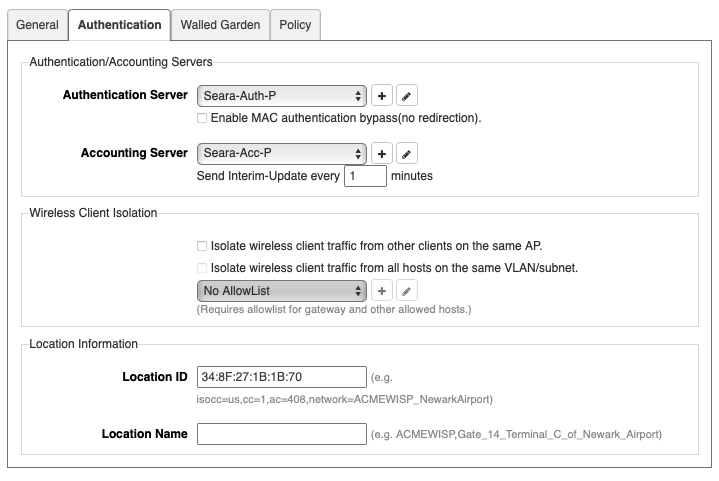
**Tab Authentication**
* Authentication Server : select the RADIUS Server profile you created
* Accounting Server : select the RADIUS Accounting profile you created
* Location ID : enter the MAC Address of the AP device acting as the Controller (Seara will use this reference when adding the NAS to the system)
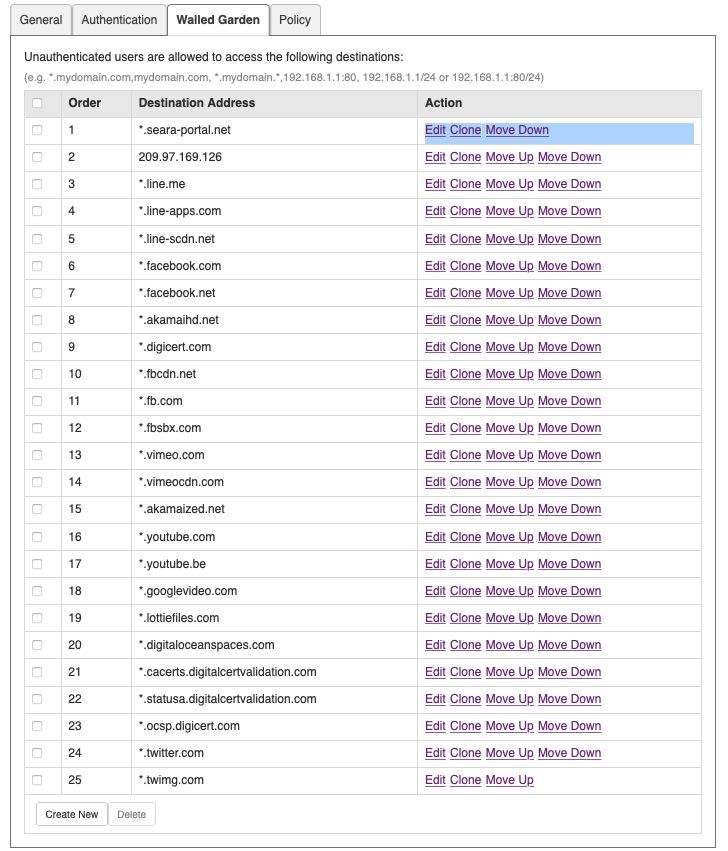
**Tab Walled Garden**
Add the Walled Garden URLs as listed below.
4\. Configuring WLAN
\- Create the Wi-Fi SSID.
!\[Image containing screenshot
Automatically generated description]\(<../.gitbook/assets/9 (1).png>)
* Go to the WiFi Network menu.
* Select Create.
.png?alt=media)
* Name : enter the SSID (must match the Hotspot Profile on the Seara Admin web)
* Usage Type : select Hotspot Service
* Authentication Method : Open
* Encryption Method : None
* Hotspot Services : select the Hotspot profile you created (Seara-Ruckus)
* Click OK
5\. [Add the Ruckus Unleashed device to Seara Cloud](https://manual.seara.biz/site-management/site-management-1#access-point) and [link the created SSID to the Hotspot Profile](https://manual.seara.biz/site-management/hotspot-management#hotspot-profile)