> For the complete documentation index, see [llms.txt](https://manual-en.seara.biz/llms.txt). Markdown versions of documentation pages are available by appending `.md` to page URLs; this page is available as [Markdown](https://manual-en.seara.biz/connect-to-seara-with/altai.md).
# Altai
Explains how to configure Seara to connect with an Altai Access Point
### **How to Configure RADIUS Seara - Altai**
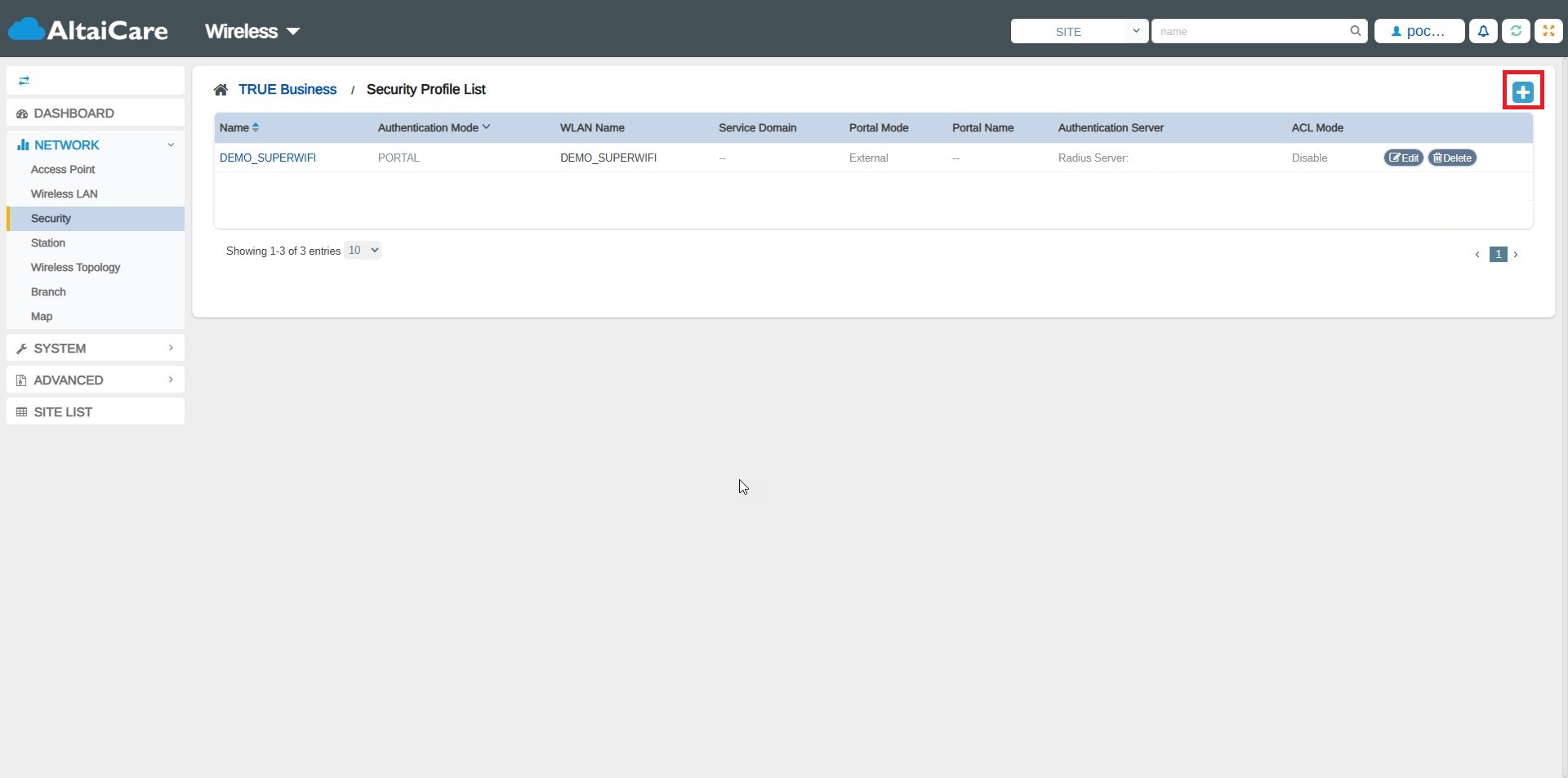
1. After adding the device, go to Network >>>> select Security and click the plus button.
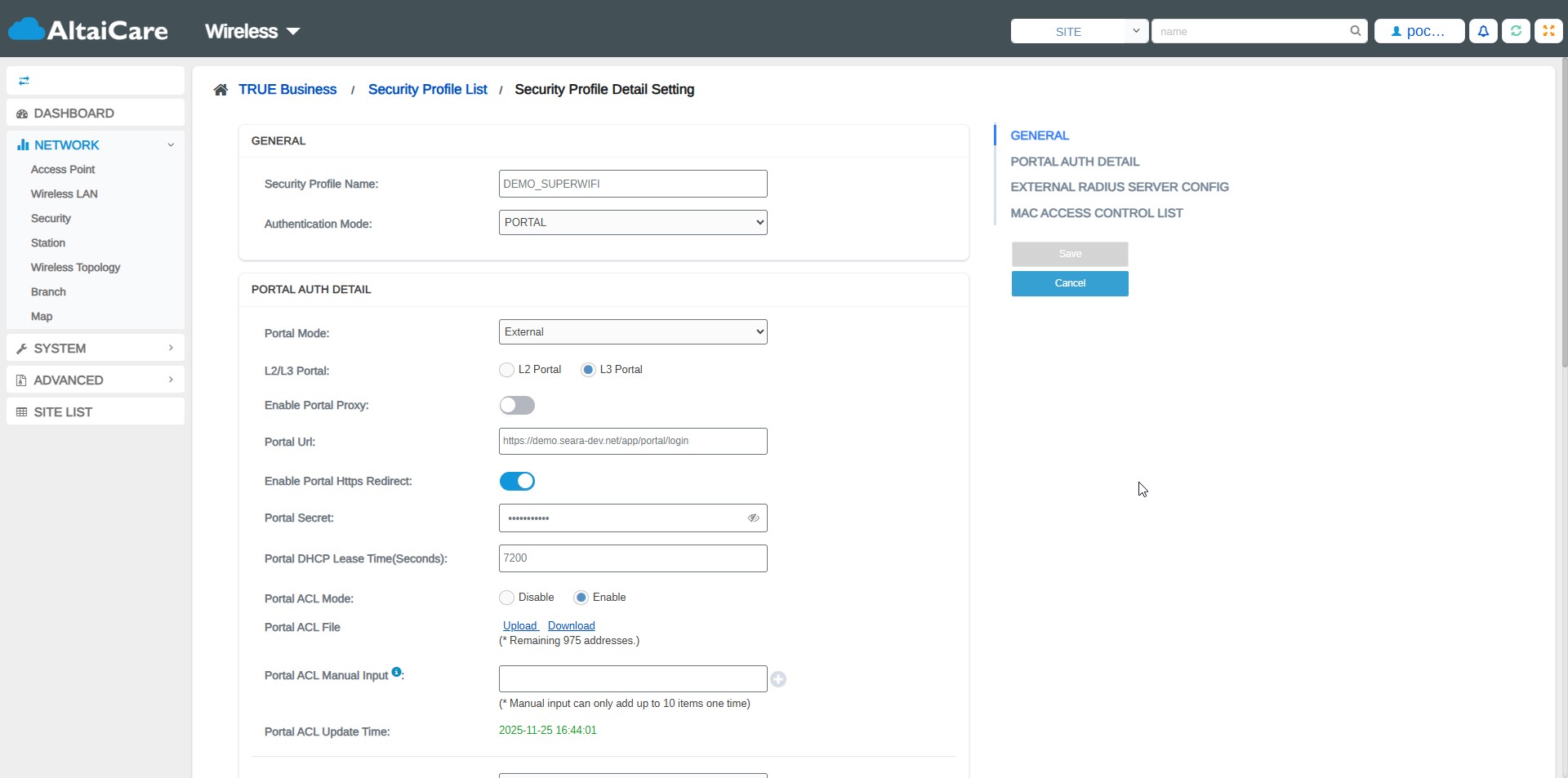
2\. External Portal Detail (information will be sent via Email). For the domain xxxx, fill in the information you received.
**Example of the Email you will receive, as shown below**
* Security Profile Name : set as desired
* Authentication Mode : PORTAL
* Portal Mode : External
* L2/L3 Portal : L3 Portal
* Portal URL :
* Portal Secret : take from the Email
* Portal ACL Mode : Enable
* Portal ACL File : enter the Allowed Domain List
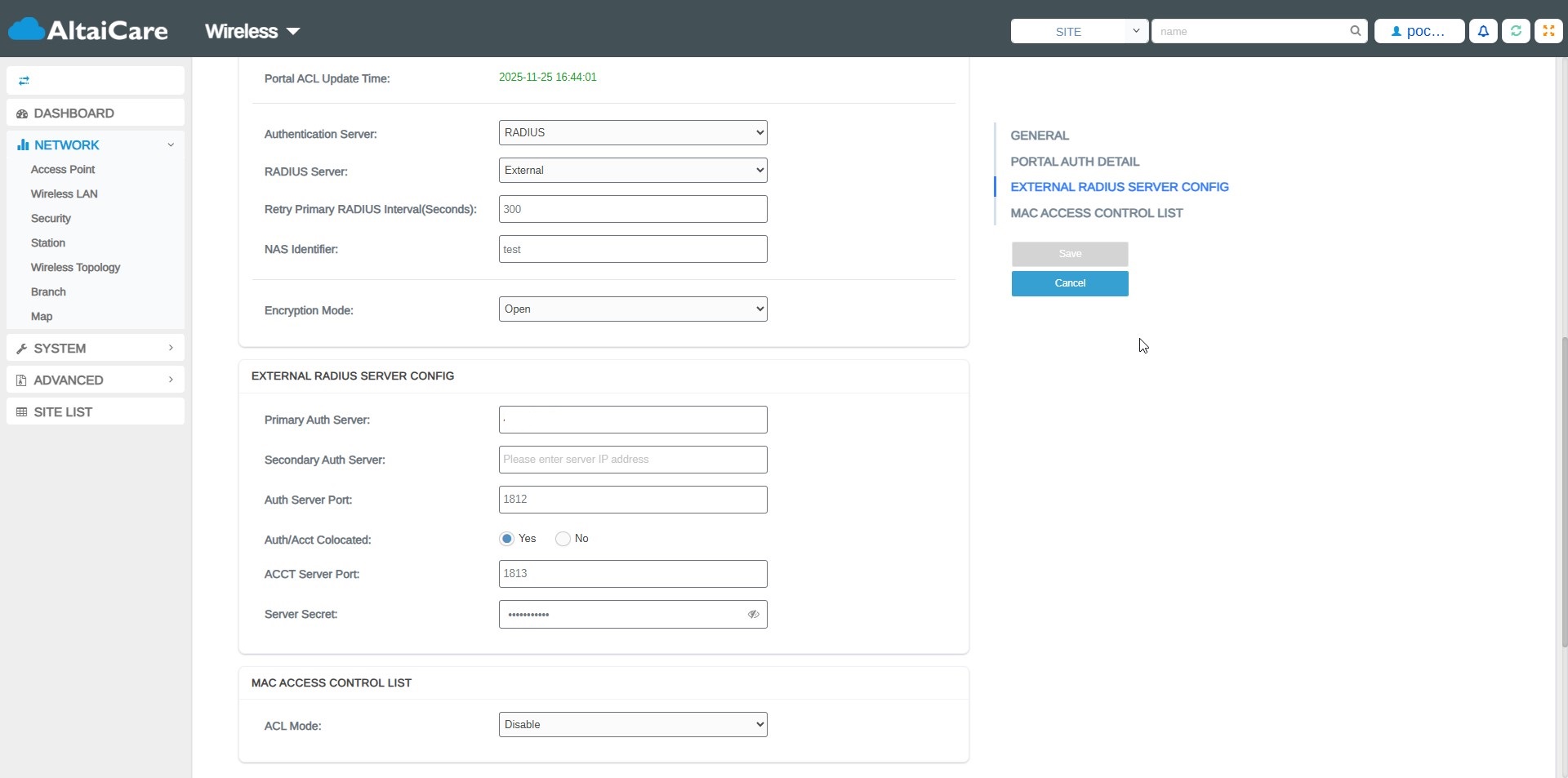
* Authentication Server : RADIUS
* RADIUS Server : External
* Retry Primary RADIUS Interval(Seconds) : 300
* Encryption Mode : Open
* Primary Auth Server : take from the Email
* Auth Server Port : 1812
* Auth/Acc Colocated : Yes
* ACCT Server Port : 1813
3\. Allowed domains
[Allowed Domain List](/appendix/allowed-domain-list.md)
\
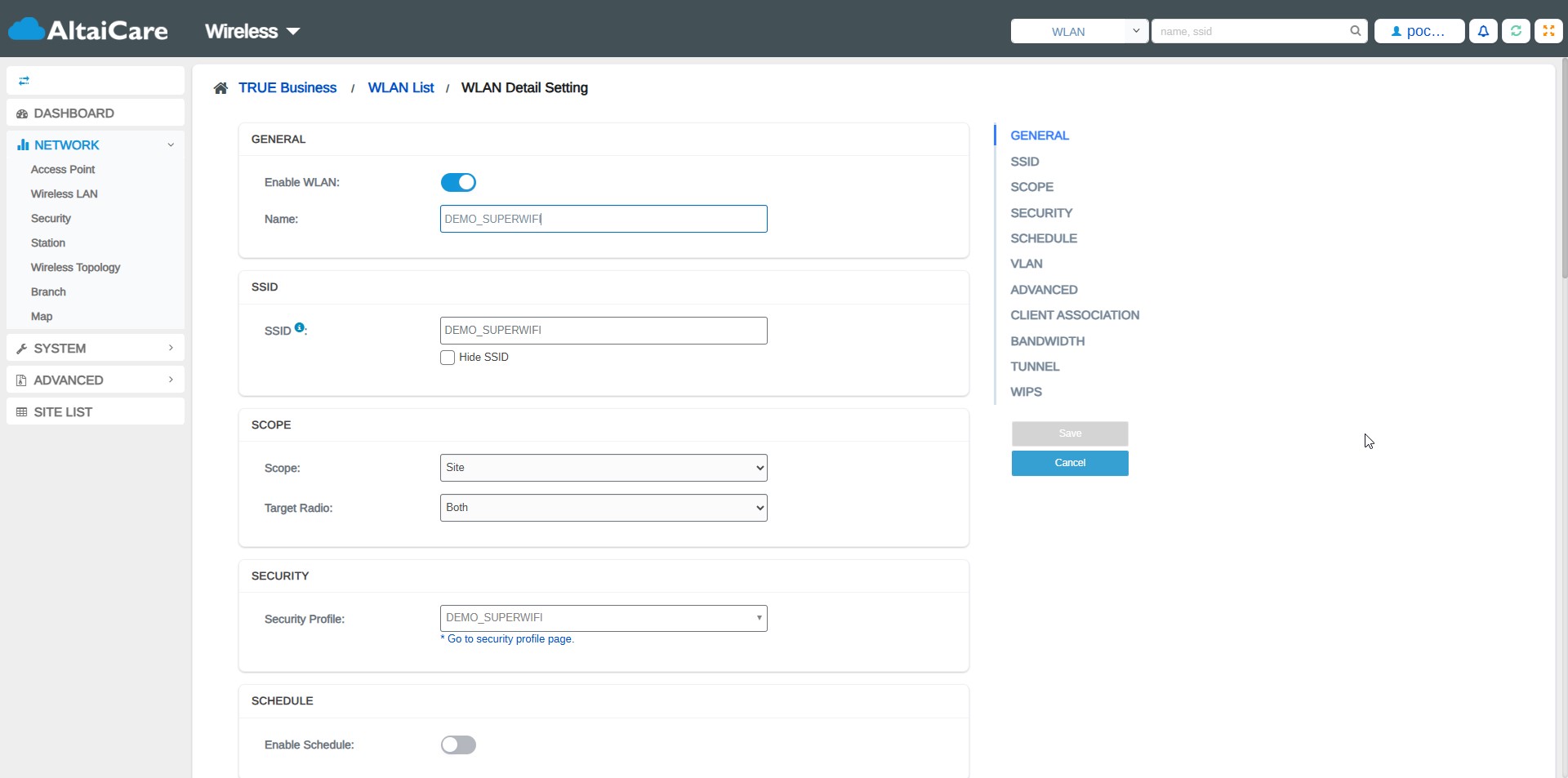
4\. Configure the Wireless LAN to use the External Portal RADIUS that we configured.
* Security Profile : DEMO\_SUPERWIFI (select the name you created under the Security menu)
.jpg?alt=media)